
Sign in to your Pika H3 workspace.
Open Pika H3 and select Sign in in the header. Continue with Google, or use your email and password. New here? Select Sign up in the login window and follow the account steps.

Signing in does not generate a video or purchase credits.
After signing in, use the avatar menu to find My account and My creations. Check your available credits before starting a generation.
What to prepare before your first Pika H3 video
You only need a browser, an account, and a written scene to begin this text-to-video workflow. Decide where the finished clip will be used before you choose settings: a wide website banner, a vertical social post, and a square product insert require different compositions. Keep a copy of your prompt in your own notes so that your creative brief remains available outside the current browser session.
This guide describes this independent workspace. Follow the options shown in the live sign-in window if they differ from a screenshot.
There is no need to purchase credits just to write a draft or explore the settings. Generating a video is a separate action that uses account credits. The signed-out button opens sign-in even when the prompt is empty; after you sign in, add a scene and review the estimate before submitting. This separation lets you prepare the creative decisions first and make the spending decision only when you are ready.
Three ways to start a Pika H3 video.
Choose the mode above the prompt field. Every mode still needs a written prompt. Start with the material you already have, then describe the movement you want to create.
Describe the entire scene. No media input is required.
Image to VideoStart with a frameAdd a required first image and, optionally, a final image.
Reference to VideoStart with referencesCombine media with a prompt. Standard is selected automatically.
Image to Video: first and last frames
In the prompt field, select the + card labeled First frame (required) to upload your starting image. Use Last frame (optional) for an ending image. Images can be up to 10 MB each. Frame shape follows your input image, so this mode does not show an aspect-ratio selector. Describe the action between the frames rather than an unrelated scene.

Reference to Video: images, video, and audio
Include at least one image or video; audio alone is not supported. Use up to 12 files combined. Images allow 10 MB per file; video and audio allow 100 MB per file. All reference videos together must be no longer than 15 seconds. Enter their total duration rounded up; the service verifies it.

Read the walkthrough
- Choose Text to Video and insert a scene starter.
- Open Image to Video to find the required first frame and optional last frame.
- Open Reference to Video to see image, video, and audio inputs. This mode selects Standard.
- Open Advanced settings to review Seed and Prompt expansion.
- Choose a duration from 5 to 15 seconds and review the updated estimate before generating.
Write your Pika H3 video prompt.
In the studio’s Text to Video editor, describe the subject, its action, the camera movement, and any sound. Select Coastal escape under Try a scene to follow this example. A scene starter replaces the text currently in the editor.
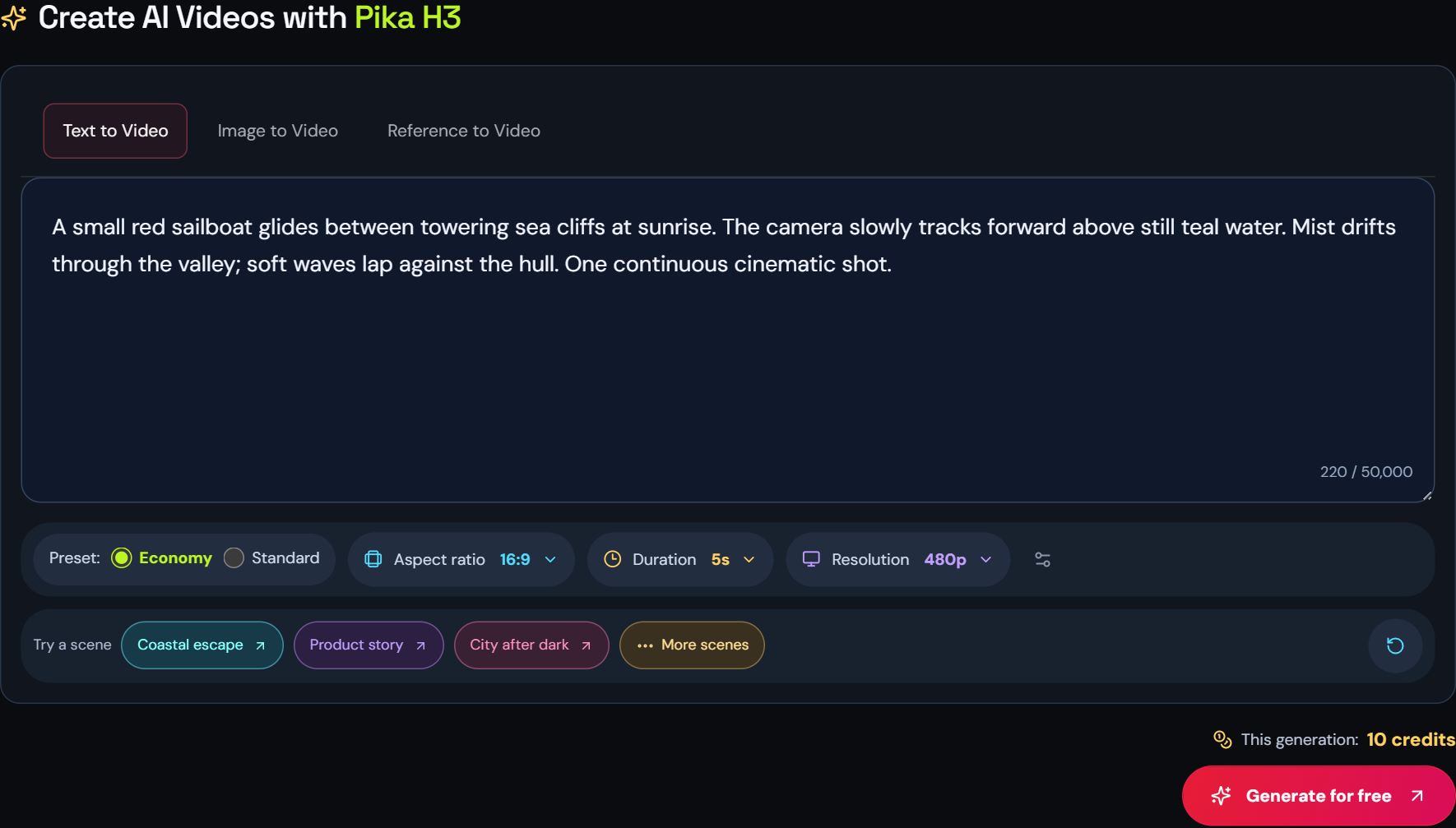
A small red sailboat glides between towering sea cliffs at sunrise.
CAMERA + ATMOSPHEREThe camera slowly tracks forward above still teal water. Mist drifts through the valley; soft waves lap against the hull. One continuous cinematic shot.
Keep the action simple and stay within the 50,000-character limit. Use More scenes and the Prompt Guide when you need a different starting point.
Turn a broad idea into a usable text-to-video prompt
For your first Pika H3 video, describe something that can happen within one shot. “A sailboat travels between cliffs” gives the subject a path and the camera something to follow. A request for an entire journey, several locations, and multiple conversations creates a much larger storytelling task. Split that idea into separate clips and assemble them later if the story needs several beats.
The scene starters are editable examples, not locked templates. Choose Product story for a product-focused brief or City after dark for a moving subject in an urban setting. Read the inserted text before generating and remove any detail that does not fit your project. The More scenes link opens additional prompt ideas. Keep the wording consistent with the aspect ratio and duration you choose in the next steps.
Choose the cost of an attempt.
Text and Image to Video offer Economy / Standard. Reference to Video requires Standard and disables Economy. Choose Economy for the text-only coastal exercise; a higher price does not guarantee a better result.

5 seconds · 480p
2 credits per second
5 seconds · 480p
3 credits per second
At 768p, Economy is 3 credits per second and Standard is 5. Keep your scene and duration unchanged when comparing presets.
Compare presets with the same creative brief
When learning how to use Pika H3, keep the first comparison small. Use the same prompt, resolution, duration, and aspect ratio for two attempts if your budget allows. Change only the preset. Otherwise, a different camera instruction or longer clip could explain the difference you notice, making the comparison less useful.
Give your scene room to move.
Open the colored toolbar menus for Aspect ratio, Duration, and Resolution. Each menu shows the current selection and available alternatives.
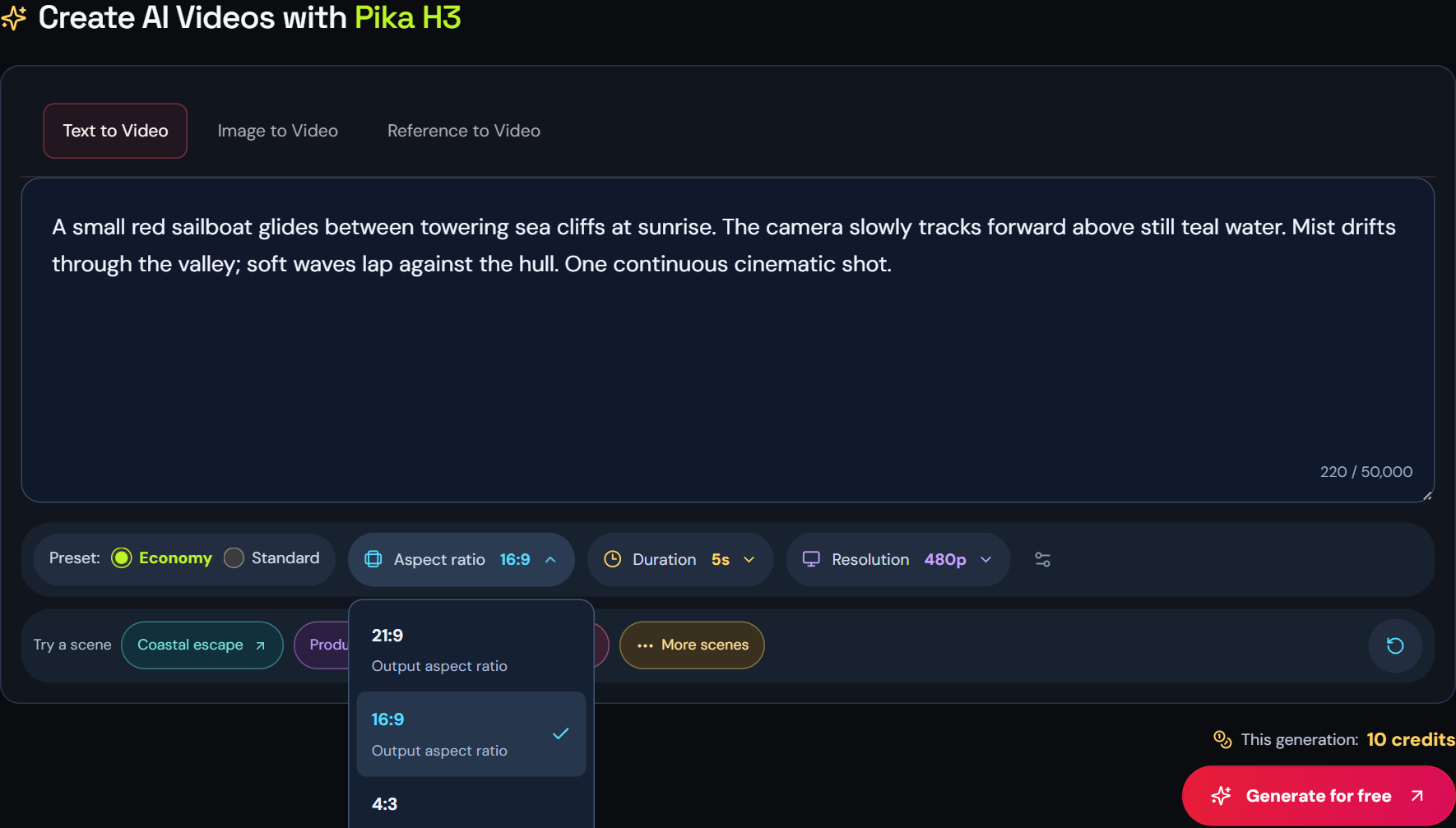
For the coastal example, choose 16:9 · 5s · 480p. Duration offers every whole second from 5 to 15; resolution offers 480p and 768p. Text mode supports 21:9, 16:9, 4:3, 1:1, 3:4, and 9:16. Reference mode also offers adaptive framing. Changing the aspect ratio does not change the current credit estimate. Resolution and duration do.
Match aspect ratio and duration to the destination
Use landscape framing when the relationship between a subject and its surroundings matters. For the coastal example, the cliffs and open water help establish scale. In a vertical version, describe the boat closer to the center and reduce reliance on details at the outer edges. A square composition can suit a compact product scene with one clear focal point.
The duration control describes the requested clip length, not the time generation will take. A five-second shot works best with a simple action and a clear ending. Longer options give an action more room, but they also increase the listed estimate. Do not add a second unrelated event simply because a longer duration is available.
Resolution is selected in the toolbar rather than requested by adding “high resolution” to the prompt. The available choices in this Pika H3 video generator are 480p and 768p. Choose the setting that fits your budget and intended edit, then inspect the actual downloaded file. Upscaling, captions, exact lettering, and final delivery formatting are separate editing decisions; they are not controls in this walkthrough.
Seed and prompt expansion
Select the settings icon in the toolbar to open Advanced settings. Leave Seed blank, or use 0, for a random seed. A specified seed must be a whole number; it is not a guarantee of identical results. Prompt expansion offers Disabled, Balanced, and Quality. Choose Disabled to use your prompt, or compare another option while keeping your other inputs stable. Safety checking stays enabled.

Review credits and generate your video.
- Preset
- Economy
- Resolution
- 480p
- Duration × rate
- 5s × 2 credits
- One attempt
- 10 credits

Compare This generation with your available balance. If you need more credits, review the options on Pricing. When signed in and ready, select Generate video once and follow the task status.
The estimate is for one attempt. In Reference to Video it is labeled Output estimate and excludes possible reference-media input charges. Final credits are calculated by the service. Allow for those charges and revisions before submitting.
Understand generation status before trying again
After submission, the studio first indicates that it is sending your scene, then shows the generation state while waiting for a result. The progress indicator starts at 1% and increases by one percentage point every three seconds, stopping at 99% while the result is pending. It jumps directly to 100% as soon as a completed video is available, even if the task finishes early. This is estimated waiting progress, not a measurement of server processing or a promised completion time. The elapsed timer shows how long the request has been running.
If status checks pause, reconnect with Resume status checks. This checks the existing request; starting a new generation creates another attempt. A connection problem, a processing task, and a failed generation are different states. Read the displayed message and review your account records before deciding whether a fresh submission is appropriate.
For a concrete budget example, three five-second Economy attempts at 480p have a combined planning estimate of 30 credits. At 768p, those same three attempts total 45 credits. This is a budget for attempts, not a promise of three usable videos. If a generation task fails, the credits deducted for that task are returned to the same account. Check Credit history in My account for the return. A delay or interrupted status check is not a confirmed failure.
Preview and download your Pika H3 video.
When a generation succeeds, open or save the available video. Use My creations to find your work. Review the moving sequence, including its sound, before deciding it is ready.
An opening with atmosphere
Coastal rooftops, mist, and sea stacks establish a place before a story begins. Use a Pika H3 establishing-shot brief to define the mood of your edit.
Follow one useful action
Hands wrapping a gift provide a clear subject and a small sequence of changes. Keep a short brief focused on one part of the action.
Creative references for reviewing framing and action; these are not outputs of the tutorial prompt.
- 01 / BEGINNING
Is the subject clear?
Check the opening composition and whether the main action is easy to recognize.
- 02 / MIDDLE
Does motion hold up?
Watch for changing shapes, abrupt cuts, and a camera that contradicts the prompt.
- 03 / END
Is it ready to save?
Check the ending, audio, actual dimensions, and duration before editing or sharing.
For another version, change one instruction at a time. Keep a separate copy of important prompts. Review rights, disclosures, and the service terms before publishing.
How to download a Pika H3 video
When the result says Your video is ready, play it in the embedded player. Select Enlarge for a larger preview, or Open video to open the available file in a new tab. Select Download video to save a local copy. If direct downloading is unavailable, the interface offers a fallback: open the video and use your browser’s Save video option. Download behavior can vary by browser and device.
Return to My creations to find your recorded videos, prompts, and task states. A successful available result has an Open / save result link. If a record displays an automatic cleanup notice, save the file you need before that date. Your browser draft and your video library serve different purposes: the draft holds your current text and settings, while the library contains service records and available results.
Keep the downloaded video beside the prompt and settings used for that attempt. Record the mode, reference files, seed, and expansion setting with each version. Before publishing, watch the full clip, listen to the audio, and verify any visible product details or text. Learning how to use Pika H3 includes deciding which result serves the project and which needs a more focused revision.
A few useful answers.
Will my draft survive signing in?
The studio stores your prompt and settings in session storage when available. It normally survives a reload or same-tab navigation, but it is not a permanent or cross-device backup. Copy important prompts before closing the tab.
Why does my estimate differ?
Check the preset, resolution, and duration in the credit calculator. Economy at 480p for five seconds is 10 credits; Economy at 768p is 15; Standard at 768p is 25. Aspect ratio does not change the current estimate.
How do I start a fresh draft?
The circular reset button beside the scene starters clears your prompt and restores the default settings. Copy any text you want to keep first.
Can I upload a reference image?
Yes. Image to Video requires a first-frame image and accepts an optional last frame. Reference to Video accepts images alongside video and audio references. Sign in before uploading, and wait for uploads to finish before generating.
What if a video is not available?
Check task status and your account history before trying again. A processing task is different from a failed request. Use Resume status checks if polling has paused, and check credit history for any adjustment.